How to Handle Common Elementor Errors: Your Ultimate Troubleshooting Guide
Elementor has revolutionized the way countless WordPress users build websites, offering unparalleled flexibility and a highly intuitive drag-and-drop interface. However, even the most powerful tools can encounter hiccups. When Elementor stops behaving as expected, it can be a source of significant frustration, especially when you’re on a tight deadline or trying to maintain a seamless user experience for your visitors.
From the editor getting stuck on a loading screen to mysterious styling issues or even a complete website breakdown, Elementor errors come in various forms. The good news is that most common problems have straightforward solutions. This comprehensive guide will walk you through identifying, understanding, and effectively resolving the most frequent Elementor errors, empowering you to troubleshoot like a pro and get your website back on track. For a deeper dive into WordPress optimization and best practices, explore our extensive guide section.
Understanding the Roots of Elementor Problems
Before diving into specific solutions, it’s crucial to grasp why Elementor errors occur in the first place. Understanding the underlying causes can significantly speed up your troubleshooting process. Most issues stem from a handful of common categories:
- Server Environment & Hosting: Elementor, being a resource-intensive page builder, requires a robust hosting environment. Insufficient PHP memory limits, outdated PHP versions, or slow servers can lead to editor timeouts, saving issues, and general sluggishness.
- Plugin Conflicts: WordPress websites often use numerous plugins, and sometimes, two or more plugins (or a plugin and your theme) might use conflicting JavaScript libraries, CSS classes, or PHP functions, leading to unexpected behavior in Elementor. Often, these conflicts arise from incompatible plugins or poorly coded extensions.
- Theme Incompatibilities: While Elementor is designed to work with most themes, some themes with highly customized structures or specific JavaScript may not play well with Elementor, leading to layout issues or editor problems.
- Browser Issues & Caching: Your browser’s cache can sometimes store outdated or corrupted versions of files, causing Elementor to display incorrectly or fail to load. Similarly, WordPress caching plugins or server-level caching can interfere with Elementor’s dynamic content.
- Outdated Software: Running outdated versions of Elementor, Elementor Pro, your WordPress core, themes, or other plugins can lead to compatibility issues and security vulnerabilities, manifesting as errors.
Essential First Steps in Troubleshooting
Before you dive into complex diagnostics, always start with these fundamental troubleshooting steps. They resolve a surprisingly high percentage of Elementor issues.
1. Clear All Caches
Caching is designed to speed up your website, but it can often show you an outdated version of your site or cause conflicts. Always clear caches as your first step:
- Browser Cache: Clear your browser’s cache and cookies, or try accessing your site in an incognito/private browsing window.
- WordPress Caching Plugins: If you use a plugin like WP Rocket, LiteSpeed Cache, or W3 Total Cache, clear its cache from your WordPress dashboard.
- Server Cache: Many hosting providers (especially managed WordPress hosts) have server-level caching. Check your hosting control panel (cPanel, Plesk, etc.) or contact your host to clear it.
2. Update Everything
Ensure all components of your website are running the latest versions:
- Elementor & Elementor Pro: Update both Elementor and Elementor Pro plugins.
- WordPress Core: Update your WordPress installation to the latest stable version.
- Theme: Update your active theme to its latest version.
- Other Plugins: Update all other active plugins.
- PHP Version: Elementor recommends PHP 7.4 or higher. Check your hosting control panel to ensure your server is running a recent PHP version. If not, update it (after taking a backup!).
3. Deactivate Plugins (One by One)
Plugin conflicts are a very common cause of Elementor errors. To identify the culprit:
- Navigate to Plugins > Installed Plugins in your WordPress dashboard.
- Deactivate all plugins EXCEPT Elementor and Elementor Pro.
- Check if the Elementor issue is resolved.
- If yes, reactivate your other plugins one by one, checking Elementor after each activation, until you find the conflicting plugin.
- Once identified, look for an alternative plugin, contact the plugin developer for support, or consider a permanent deactivation if it’s not critical.
4. Switch to a Default WordPress Theme
Theme conflicts can also cause Elementor problems. Temporarily switch to a default WordPress theme (e.g., Twenty Twenty-Four, Twenty Twenty-Three):
- Go to Appearance > Themes.
- Activate a default WordPress theme.
- Check if the Elementor issue persists. If it resolves, your theme is likely the problem. Contact your theme developer for support.
5. Check WordPress Site Health
WordPress includes a Site Health tool (Tools > Site Health) that can flag common configuration issues, such as outdated PHP versions, missing modules, or low memory limits, which directly impact Elementor’s performance.
Common Elementor Errors and Their Solutions
Now, let’s address specific errors you might encounter and their targeted solutions.
Elementor Editor Not Loading / Stuck on Loading Screen
This is arguably the most common and frustrating Elementor error, often showing the spinning Elementor logo indefinitely.
- Increase PHP Memory Limit: Elementor requires a minimum of 128MB, but 256MB or 512MB is highly recommended. You can increase it by adding
define( 'WP_MEMORY_LIMIT', '256M' );to yourwp-config.phpfile (above the line that says “That’s all, stop editing! Happy blogging.”). Alternatively, ask your hosting provider. - Elementor Safe Mode: Elementor has a built-in “Safe Mode” that disables non-Elementor plugins and themes for troubleshooting purposes. Go to Elementor > Tools > Safe Mode and enable it. If the editor loads in safe mode, you likely have a plugin or theme conflict (refer to the “Essential First Steps”).
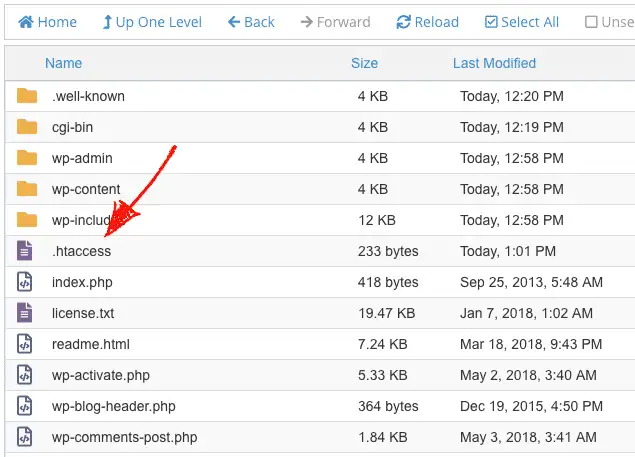
- Check for Corrupt .htaccess File: A malformed
.htaccessfile can cause server errors. Back up your existing.htaccessfile (in your root WordPress directory) and replace it with a fresh default one. You can regenerate a default.htaccessby going to Settings > Permalinks and simply clicking “Save Changes” without making any modifications. - Incorrect WordPress Address (URL) Settings: Ensure your WordPress Address (URL) and Site Address (URL) in Settings > General are identical and correct (e.g., both use
https://or both usehttp://, and don’t mixwwwwith non-wwwunless specifically configured).
“The Content Area Was Not Found in Your Page” Error
This error typically occurs when your theme doesn’t properly call the the_content() function, which Elementor needs to inject its content.
- Theme Compatibility: As mentioned, switch to a default theme to check if the issue is theme-related.
- Template Settings: When editing a page with Elementor, go to Page Settings (bottom left panel) and set the ‘Page Layout’ to ‘Elementor Canvas’ or ‘Elementor Full Width’. This ensures Elementor takes full control of the page layout.
- Custom Page Templates: If you’re using a custom page template, ensure it includes
<?php while ( have_posts() ) : the_post(); the_content(); endwhile; ?>within the main loop. This ensures the WordPress content area is present.
Styles Not Applying / Elementor Layout Issues
You’ve designed your page beautifully, but on the live site, colors are wrong, elements are misaligned, or sections are broken.
- Regenerate CSS & Data: Elementor has a tool to regenerate its CSS files. Go to Elementor > Tools > Regenerate CSS & Data and click “Regenerate Files.” Then, clear all caches (browser, WordPress, server).
- Caching Conflicts: Aggressive caching (especially minification or concatenation of CSS/JS) can break Elementor styles. Temporarily disable these features in your caching plugin to check.
- Theme’s Global Styles: Some themes might aggressively override Elementor’s styles. Check your theme’s customizer settings or consult its documentation regarding global styling.
- Plugin-Specific CSS/JS: A plugin might be injecting conflicting CSS or JavaScript. Use the plugin deactivation method to find the culprit.
500 Internal Server Error / White Screen of Death (WSOD)
These are critical errors indicating a serious server-side problem, often caused by fatal PHP errors.
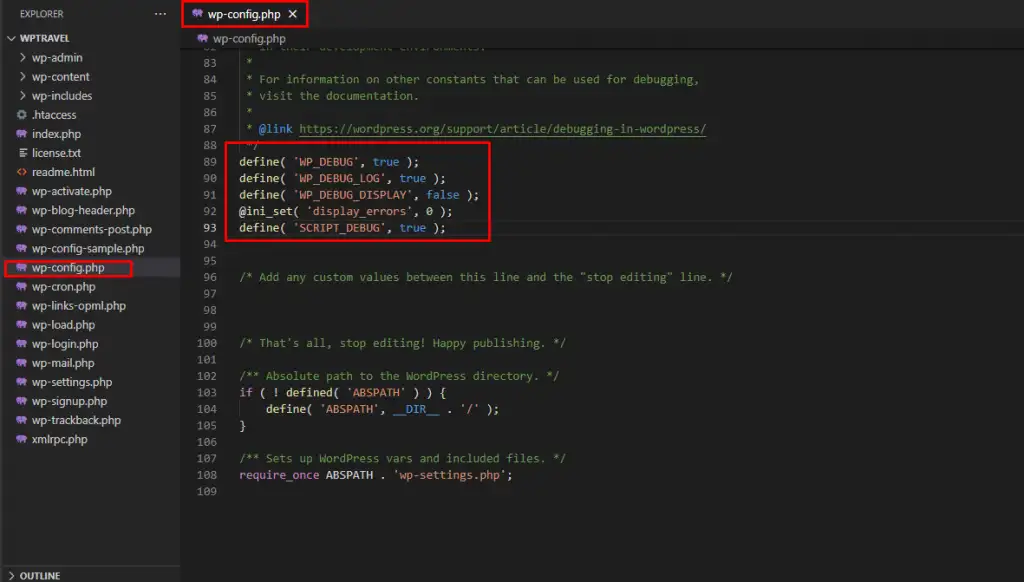
- Enable WordPress Debugging: Add
define( 'WP_DEBUG', true );anddefine( 'WP_DEBUG_LOG', true );to yourwp-config.phpfile. This will display or log PHP errors, giving you clues about the cause (often a specific plugin or theme). Remember to setWP_DEBUGback tofalseafter troubleshooting. - Check PHP Version: Ensure your PHP version is compatible and updated (7.4+).
- Increase PHP Memory Limit: As discussed earlier, low memory can lead to WSOD.
- Corrupt .htaccess: Re-generate your
.htaccessfile. - Plugin/Theme Conflict: Deactivate all plugins and switch to a default theme via FTP/hosting panel if you can’t access the dashboard. Rename the
pluginsfolder toplugins_oldand the active theme folder totheme_old. If the site comes back, reactivate/rename them one by one.
Elementor Widget Panel Missing or Blank
The left-hand Elementor panel where you drag and drop widgets appears empty or doesn’t load.
- Plugin Conflicts: Often caused by another plugin interfering with Elementor’s JavaScript. Use Elementor Safe Mode or the manual plugin deactivation method.
- Browser Issues: Try a different browser or an incognito window. Browser extensions can sometimes interfere.
- Elementor Version Glitch: Ensure Elementor and Elementor Pro are updated. If already updated, try rolling back to a previous version (available in Elementor > Tools > Version Control) to see if it’s a new bug, then update again.
Saving Issues / “Server Error (403)” When Saving
You make changes, hit save, and nothing happens, or you get a 403 error.
- Mod_security Rules: Many hosting providers use mod_security, a firewall that can sometimes block legitimate Elementor requests, interpreting them as malicious. Contact your host to check their mod_security logs and whitelist Elementor-related requests.
- PHP Max Input Vars: Increase your
max_input_varsvalue in yourphp.inifile (e.g., to5000or10000). Ask your host if you don’t have direct access. - WordPress Nonce Issues: Sometimes, nonce (number once) verification fails. Clearing caches and logging out/in again can resolve this.
- Caching Plugins: Certain caching plugins might interfere with the saving process. Temporarily disable them.
Elementor Elements Not Draggable / Unable to Edit
You can see the editor, but you can’t drag new widgets, or existing elements are unresponsive to clicks.
- JavaScript Conflicts: This is almost always a JavaScript conflict, typically from another plugin or theme. Enable Elementor Safe Mode or perform a manual plugin conflict check.
- Browser Extensions: Some browser extensions (especially ad blockers or security extensions) can block JavaScript needed by Elementor. Try in an incognito window or a different browser.
Image Upload Errors / Media Library Issues
You can’t upload images, or your media library is empty or showing broken images.
- Folder Permissions: Ensure your
wp-content/uploadsfolder and its subfolders have correct file permissions (usually 755 for folders and 644 for files). You can check and change these via FTP or your hosting file manager. - PHP Memory Limit: Low memory can affect image processing. Increase your PHP memory limit.
- Server Space: Check if your hosting account has run out of disk space.
Advanced Troubleshooting Techniques
When the basic steps don’t cut it, it’s time to dig deeper.
Elementor Safe Mode
We’ve mentioned it, but it’s worth reiterating. Elementor Safe Mode is a powerful diagnostic tool. It isolates Elementor from your theme and other plugins, allowing you to determine if the problem lies within Elementor itself or with its environment. If your issue resolves in Safe Mode, you know to look for a theme or plugin conflict.
Debugging with WP_DEBUG
Enabling WP_DEBUG (as described for 500 errors) is invaluable for uncovering PHP errors. Review the debug.log file (usually in your wp-content directory) for specific error messages that point to a file path and line number, helping you pinpoint the exact plugin or theme causing the issue.
Checking Server Error Logs
Your hosting provider’s control panel usually offers access to server error logs (e.g., Apache error logs). These logs can provide critical information about server-side issues, timeout errors, or permission problems that WordPress’s own debugging might not capture.
Contacting Hosting Support
Don’t hesitate to reach out to your hosting provider. They can often quickly identify server-related issues, memory limits, mod_security blocks, or outdated PHP configurations that might be difficult for you to diagnose.
Reinstalling Elementor (as a last resort)
If you’ve exhausted all other options and suspect a corrupt Elementor installation, you can try a clean reinstall. **Always back up your site first!** Deactivate and delete both Elementor and Elementor Pro, then reinstall them from scratch. Your designs and content are stored in the database, so they should remain intact, but a backup is non-negotiable.
Preventing Future Elementor Errors
An ounce of prevention is worth a pound of cure. Adopting these best practices can significantly reduce the likelihood of encountering future Elementor problems:
- Regular Updates: Keep Elementor, Elementor Pro, WordPress, your theme, and all plugins updated. Developers often release updates to fix bugs and ensure compatibility.
- Use Reputable Themes and Plugins: Stick to well-coded themes and plugins from trusted developers with good support and frequent updates. Avoid using nulled or pirated software.
- Test on a Staging Environment: Before pushing major updates or installing new plugins on your live site, test them on a staging (development) environment. Many hosts offer one-click staging site creation.
- Monitor Site Health: Regularly check your WordPress Site Health report for any warnings or critical issues.
- Adequate Hosting Resources: Invest in quality hosting that meets or exceeds Elementor’s recommended server requirements. Shared hosting with low limits can often be the source of recurring problems.
- Regular Backups: Implement a robust backup strategy. In the event of an unresolvable error, a recent backup can be your lifeline.
Conclusion
Encountering errors with Elementor can be frustrating, but with a systematic approach to troubleshooting, most issues are resolvable. By understanding the common causes, applying the essential first steps, and familiarizing yourself with solutions for specific errors, you gain the confidence to diagnose and fix problems efficiently.
Remember to always back up your site before making significant changes, clear caches regularly, and keep all your website components updated. With these practices in place, you can ensure a smoother, more reliable Elementor experience, allowing you to focus on what you do best: creating stunning websites.
- Fixing YouTube Video Display Errors in WordPress: A Comprehensive Troubleshooting Guide
- How to Enable Debug Mode in WordPress: Your Essential Guide to Troubleshooting Errors
- The Ultimate Guide to Installing WordPress Plugins: Step-by-Step for Every User
- How to Create a Child Theme for Any WordPress Theme: The Definitive Guide
- How to Install Flatsome Theme on WordPress: A Complete Step-by-Step Guide
Related articles:
-

Unlock Any Site’s Secret: WordPress Theme Detector
-

Ultimate WordPress Hosting Guide: Speed & Security
-

Install WordPress: Your Complete Step-by-Step Guide
-

How to Rename WordPress Theme Folder (Without Errors)
-
Fixing YouTube Video Display Errors in WordPress: A Comprehensive Troubleshooting Guide
-

How to Extract a .wpress File: Your Comprehensive Guide to Unpacking WordPress Backups
-

How to Install Flatsome Theme on WordPress: A Complete Step-by-Step Guide
-

How to Enable Debug Mode in WordPress: Your Essential Guide to Troubleshooting Errors
-

How to Create a Child Theme for Any WordPress Theme: The Definitive Guide
-
Guide to Installing WordPress Themes: A Comprehensive Step-by-Step Tutorial
-

The Ultimate Guide to Installing WordPress Plugins: Step-by-Step for Every User
-

How to Find, Create, and Master Your WordPress .htaccess File